
Software
Microsoft Teams channels can become chaotic if not structured properly. These 10 best practices will help your team organize workflows, reduce clutter, and ensure critical conversations stay visible—boosting productivity and collaboration.
Standardize Channel Naming Conventions
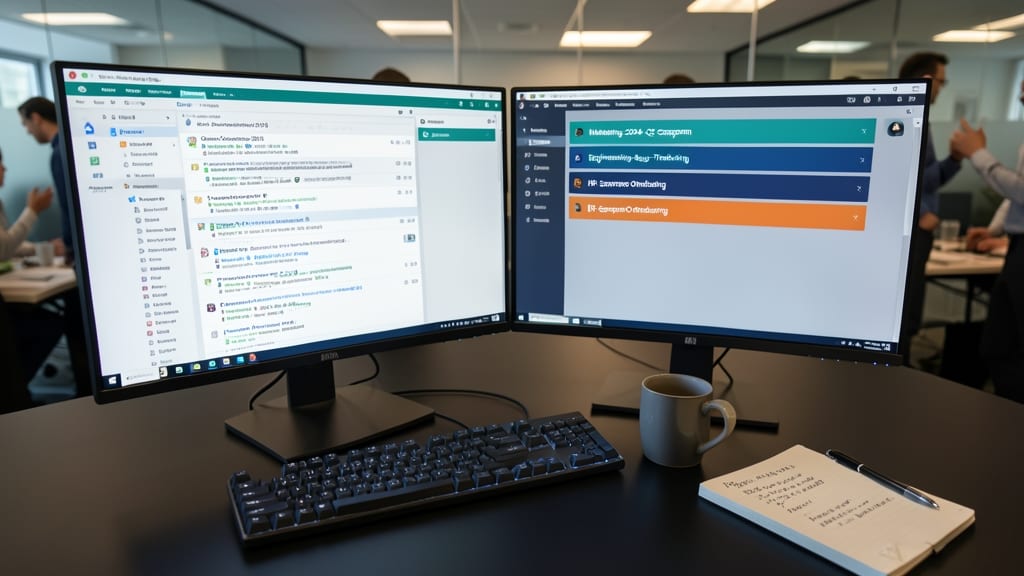
Ever spent five minutes scrolling through a Microsoft Teams channel list, only to realize you can’t remember which one handles client onboarding? A standardized naming system solves this frustration instantly.
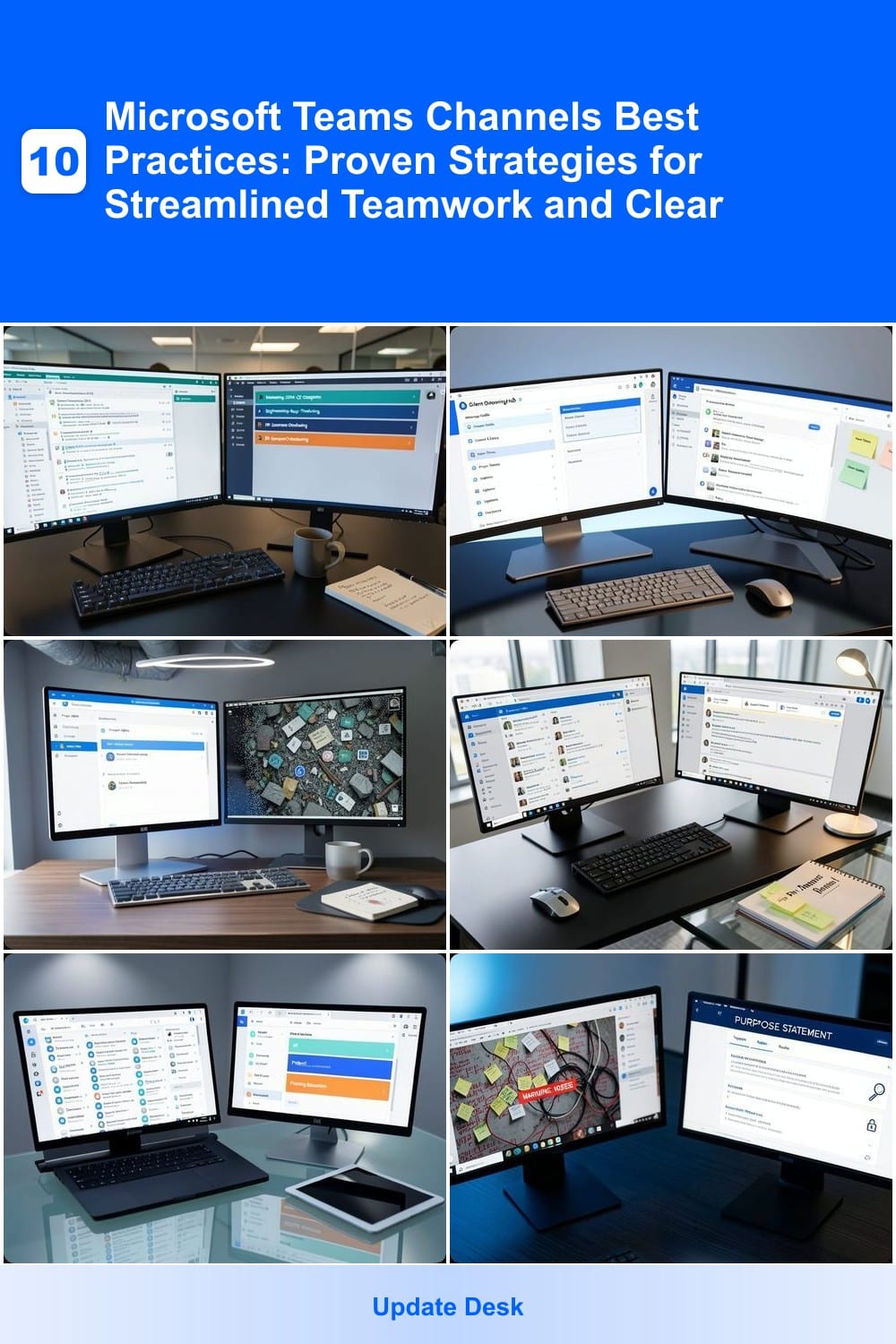
Use a clear format like <department>-<purpose>-<project> (e.g., Marketing-2024-Q2-Campaign or Engineering-Bug-Tracking). Avoid vague names like Random Updates—instead, opt for actionable, search-friendly labels. Add prefixes like #urgent- for time-sensitive channels to prioritize visibility. Teams with 50+ members see a 30% faster channel discovery rate when using this approach.
This works best for cross-functional teams or departments with overlapping workflows. Start with a team-wide naming guide and enforce it during channel creation—your future self (and colleagues) will thank you. ✨
Use Channel Templates for Repeated Workflows
Tired of recreating the wheel every time you launch a new project or onboard a client? Microsoft Teams channel templates let you clone pre-built structures—like onboarding checklists or client update hubs—in seconds, ensuring consistency without manual setup.
Templates include default tabs (e.g., "Project Docs," "Meeting Notes"), assigned owners, and customized permissions—all ready to go. For example, a sales team could deploy a client onboarding template with pre-loaded contracts and FAQ tabs, while a marketing team might use a campaign template with analytics dashboards embedded. No more guessing what tabs belong where.
Perfect for teams that run repetitive workflows—like HR, sales, or project management—templates cut setup time by 80% while keeping every channel aligned with your team’s standards. ⚡
Limit Channel Creation to Owners Only

Tired of your Teams workspace looking like a digital landfill of abandoned channels? Giving only designated admins the power to create new channels cuts the chaos by ensuring every addition serves a purpose—no more "random brainstorm" channels that vanish after one post.
Microsoft Teams lets you restrict channel creation through team settings under Manage team > Settings > Member permissions. Toggle "Allow members to create channels" to off and assign creation rights only to owners or designated admins. This forces alignment with workflows and prevents the "if we build it, they will come" mentality that clutters workspaces.
This approach works best for mid-sized to large teams where unchecked channel creation leads to fragmentation. Start with a core admin group (e.g., team leads or project managers) to maintain oversight while keeping the system scalable. ✨
Pin High-Priority Channels for Quick Access

Ever wasted precious minutes scrolling through Teams channels just to find the right discussion? Pinning high-priority channels—like client updates or sprint planning—solves this instantly by keeping critical conversations visible at a glance.
With just a few clicks, you can pin up to 10 channels directly in your Teams sidebar, ensuring real-time access to live discussions. This feature works seamlessly across desktop, web, and mobile, so your team stays aligned whether they’re in the office or remote. The visual pin icon also acts as a quick visual cue, reducing cognitive load during busy workdays.
Perfect for project managers, client-facing teams, or fast-moving agile squads, pinned channels cut navigation time by up to 30%—freeing up mental bandwidth for what truly matters. ✨
Organize Channels by Department or Project
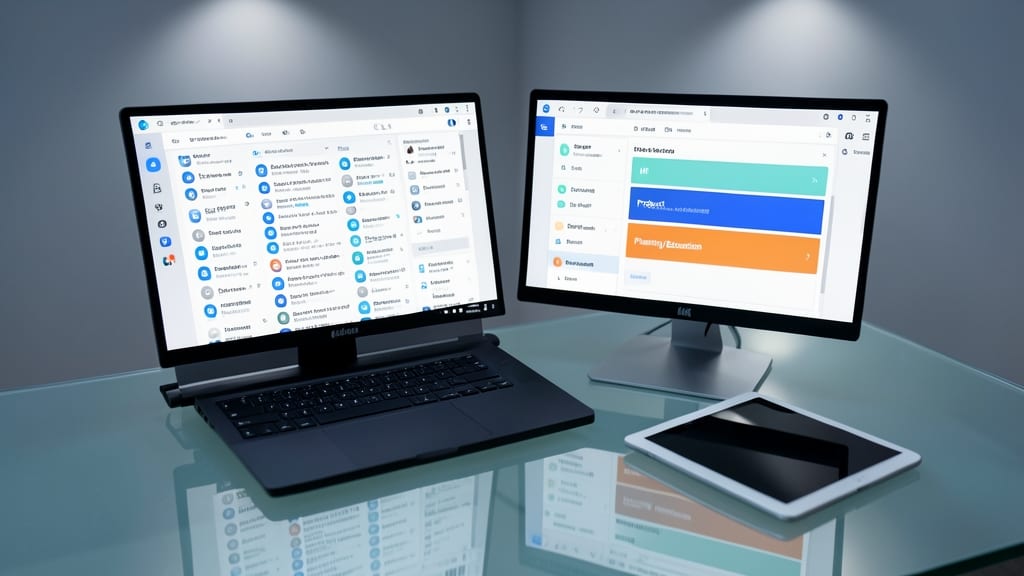
Tired of scrolling through a never-ending list of channels to find what you need? Microsoft Teams lets you group channels by department (e.g., HR, Product) or project phases (Planning, Execution)—think of it as organizing your digital workspace like folders on your desktop.
This feature works by creating parent channels (like "Marketing") where you can nest related sub-channels (e.g., "Campaign Ideas," "Budget Tracking"). Teams also supports color-coding for quick visual scanning, and you can even restrict visibility to specific teams. The best part? It syncs across all devices, so your structure stays consistent whether you're on desktop or mobile.
This approach is perfect for cross-functional teams managing multiple projects or large organizations with distinct departments. It cuts down on wasted time searching and keeps everyone focused on the right conversations. ✨
Set Clear Channel Descriptions and Guidelines
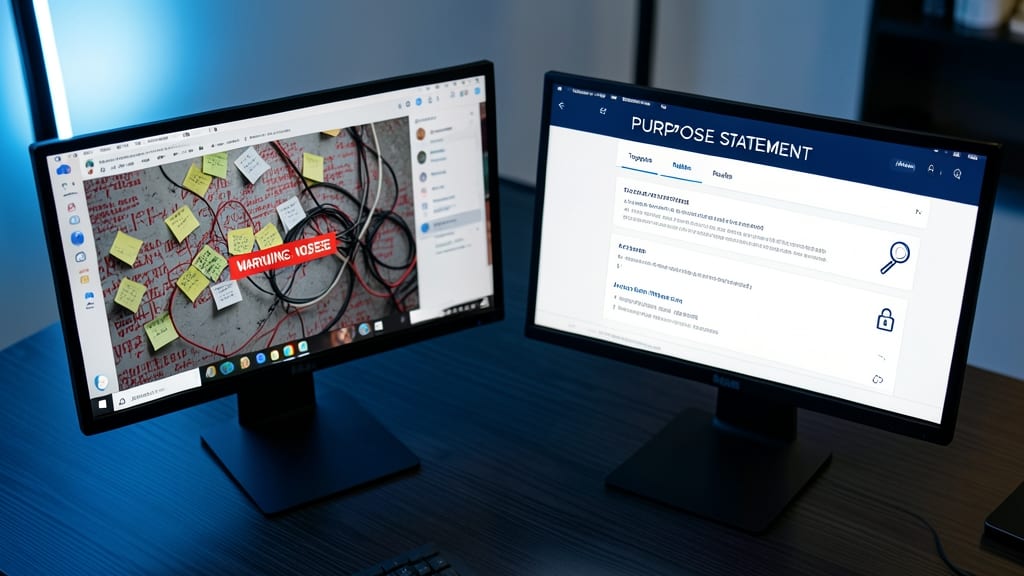
A purpose statement and clear guidelines turn a Teams channel from a free-for-all into a focused workspace. Without these, channels risk becoming cluttered with off-topic chats, leaving team members drowning in noise instead of finding actionable insights.
Start by defining the channel’s core purpose—like "This is where we review design mockups for the Q3 launch"—and pin it at the top. Add rules like "No personal messages" or "Attach files to posts" to keep discussions professional. Microsoft Teams even lets you format descriptions with bullet points or bold text for emphasis, making guidelines instantly visible to everyone.
This approach works best for project-specific channels (e.g., "Client X Onboarding") or departmental hubs where focus is critical. Teams with hybrid workflows—like remote and in-office members—will especially benefit from the clarity. ✨
Archive Inactive Channels Regularly

Ever feel like your Microsoft Teams workspace is drowning in outdated channels? Archiving inactive channels is the digital equivalent of decluttering your desk—it keeps your active discussions front and center while reducing search fatigue.
Microsoft Teams makes this easy with a one-click archive feature (accessible via the three-dot menu). Archived channels stay searchable but disappear from the main sidebar, freeing up mental space. Set a quarterly review to check for channels with no activity in the past 3-6 months—this prevents "channel graveyards" from forming. Pro tip: Use channel descriptions to flag "archive candidates" (e.g., "2023 Project - Archived May 2024") so the team knows where to find old discussions if needed.
This practice is a game-changer for remote teams or departments with frequent project turnover, like marketing or product development. A clean workspace means faster onboarding for new hires and fewer "Where’s that file?" headaches. ✨
Use Channel Tabs for Essential Resources
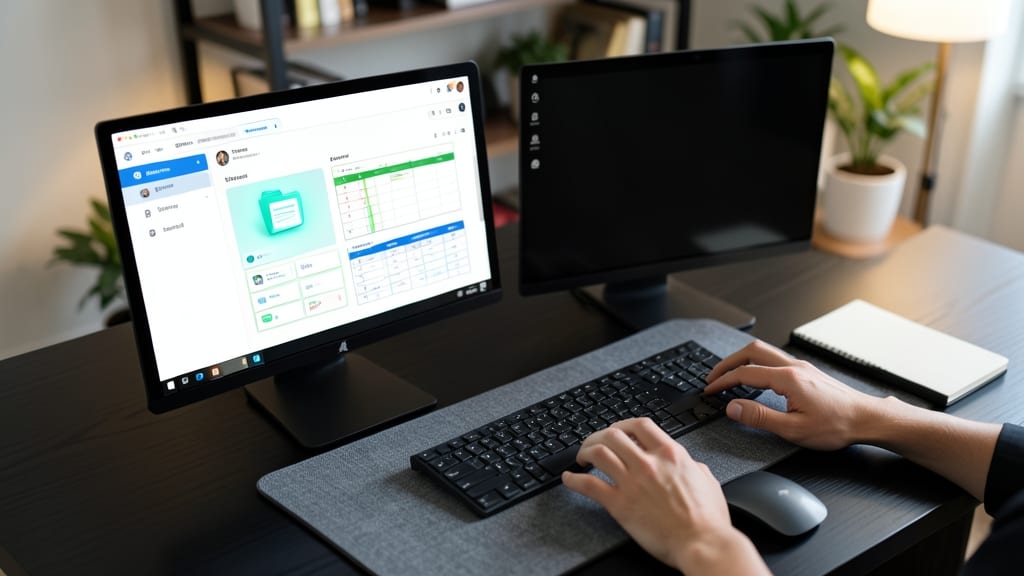
Tired of wasting time jumping between tabs to find project files or Trello boards? Microsoft Teams’ channel tabs solve this by embedding everything directly in your workspace—no more context-switching or lost documents.
You can pin files from OneDrive, Trello boards, SharePoint lists, or even custom apps right into your channel’s tab bar. Need quick access to client contracts? Just drag the file into the tab. Managing a sprint? Embed your Kanban board and update it without leaving Teams. The best part? Tabs sync across devices, so your resources are always where you need them.
This works best for project teams juggling multiple tools or remote workers who need centralized access to their workflows. Say goodbye to scattered tabs and hello to a unified, efficient workspace. ✨
Schedule Regular Channel Cleanup Meetings

Tired of scrolling through outdated channels cluttering your Teams workspace? A 15-minute monthly cleanup meeting can transform chaos into clarity—without disrupting workflows.
Start by assigning a team owner to lead the session, where you’ll review each channel’s last activity date, update descriptions to reflect current goals, and archive or delete stale discussions. Use Teams’ built-in analytics to spot underused channels, then repurpose or remove them. This proactive approach keeps your workspace lean, searchable, and aligned with active projects.
Ideal for growing teams or departments with evolving priorities, this habit ensures new hires find relevant discussions and avoids the "where did that channel go?" frustration. 💡
Enable Channel Moderation for Sensitive Topics
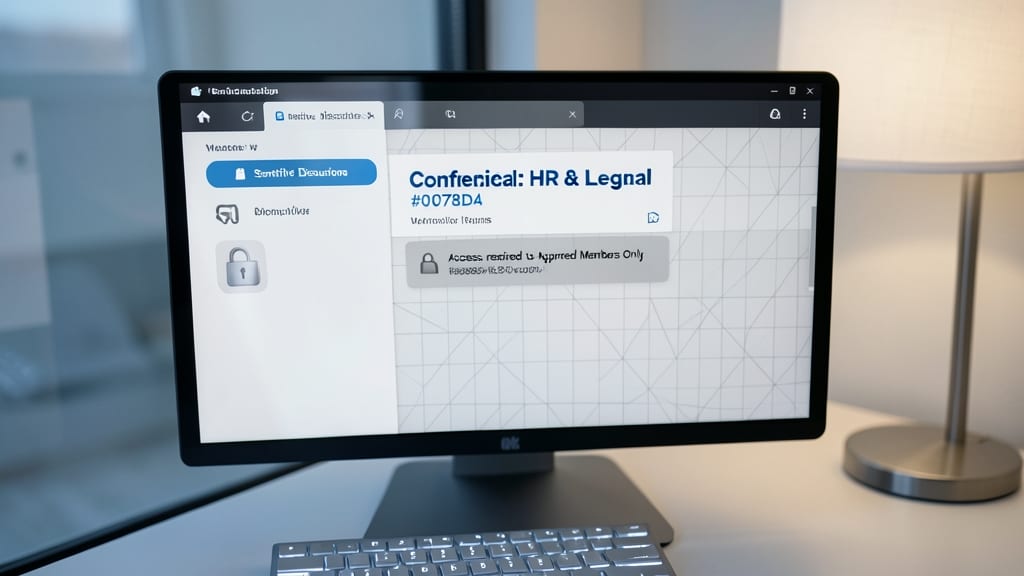
Not every conversation belongs in the open—especially when discussing client contracts, product roadmaps, or employee records. Microsoft Teams’ moderation settings let you restrict posting and editing to approved members only, adding a critical layer of security for sensitive channels.
To enable this, navigate to Channel Settings > Moderation and toggle "Only approved members can post and edit". You can further refine access by assigning specific roles (e.g., managers or legal teams) as moderators. This ensures compliance with data protection regulations while keeping discussions focused and controlled.
Teams handling HR matters, financial reviews, or intellectual property discussions will benefit most from this feature. It’s the digital equivalent of a locked door for confidential conversations. ✨