
Tip & Trick
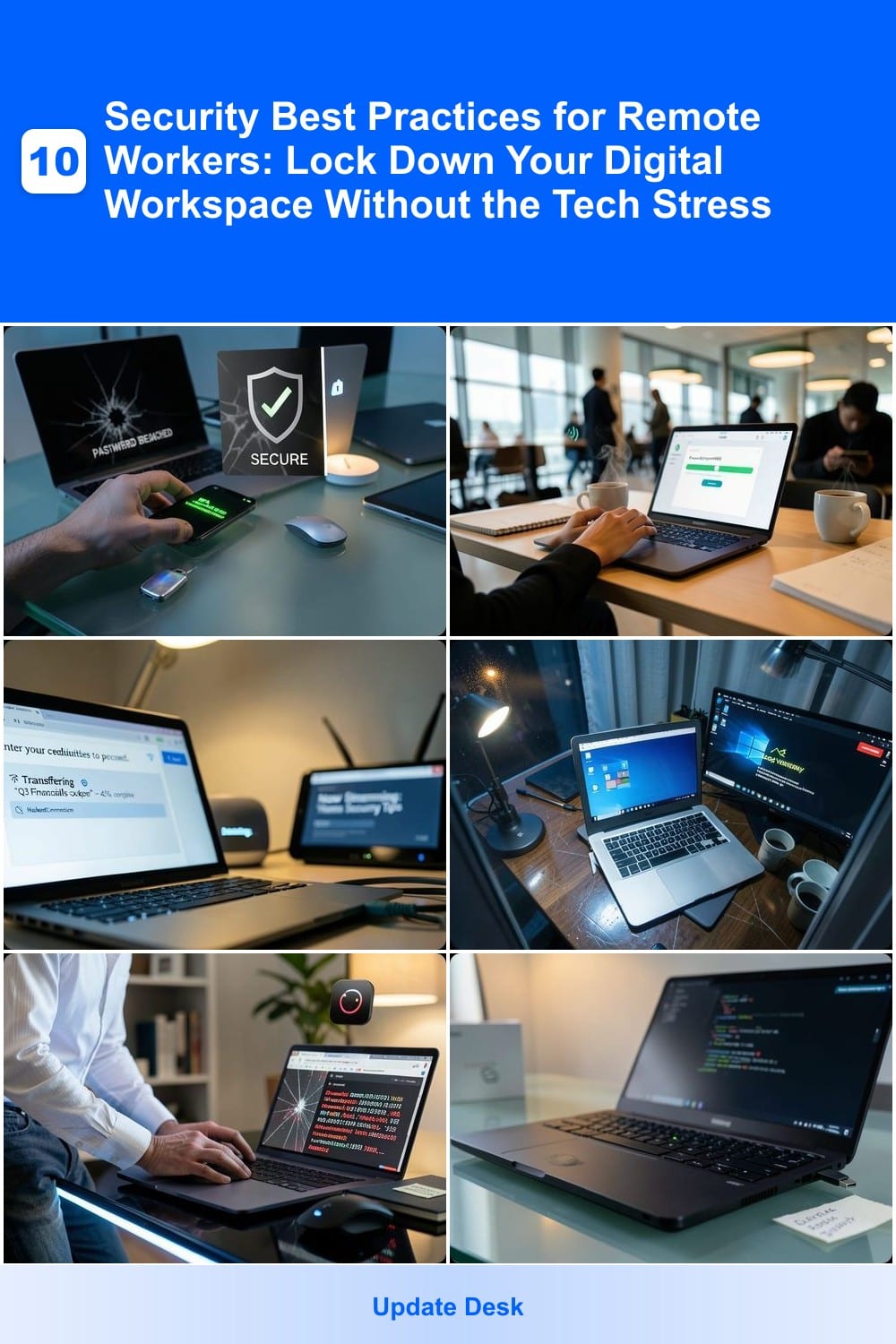
Remote work offers flexibility but exposes you to cyber threats. These 10 security best practices help you protect sensitive data, avoid phishing scams, and maintain privacy—without overwhelming technical hurdles or sacrificing productivity.
Enable Multi-Factor Authentication Everywhere
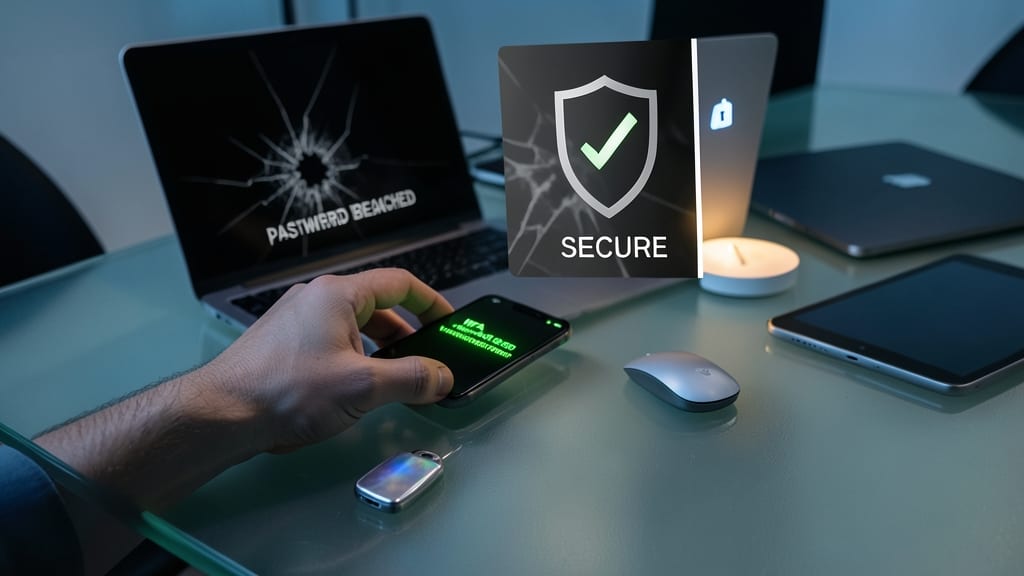
Credential theft is the #1 way hackers breach remote work accounts—but multi-factor authentication (MFA) can stop them in their tracks. Even if your password is compromised, MFA adds an extra layer of protection that thieves can’t bypass without physical access to your device or a secondary code.
Most platforms now support TOTP (time-based codes), biometrics, or hardware keys like YubiKey. For example, enabling Microsoft Authenticator for work emails adds push notifications that take just seconds to approve. Google’s 2-Step Verification works similarly for personal accounts, while services like Duo Security integrate seamlessly with enterprise systems. The best part? Many providers offer zero-configuration setups—just scan a QR code or follow a link.
This isn’t just for work—personal emails, banking, and even gaming accounts should use MFA. A single breach can lead to "lateral attacks" where hackers pivot from one account to another. Start with your most critical accounts, then expand. Your future self will thank you. ⚡
Use a Dedicated Work VPN
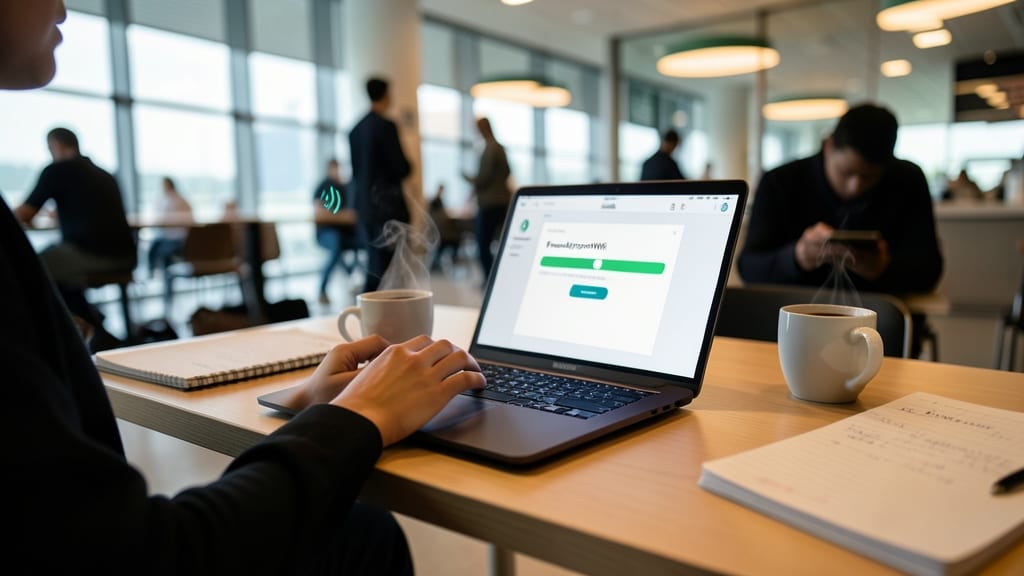
Public Wi-Fi at coffee shops or airports is convenient—but also a hacker’s playground. A dedicated work VPN creates an encrypted tunnel for all your traffic, shielding sensitive files and communications from prying eyes on unsecured networks.
Most corporate VPNs use AES-256 encryption, the same standard banks use, to scramble data before it leaves your device. They also mask your real IP address, making it harder for attackers to track your location. Many modern VPNs integrate seamlessly with SSO (Single Sign-On) platforms like Okta or Azure AD, so you only need one login to access both your VPN and company apps.
This is a must-have for anyone handling client data, financials, or proprietary projects—especially if you switch between home and public networks. ⚡
Secure Your Home Wi-Fi Network
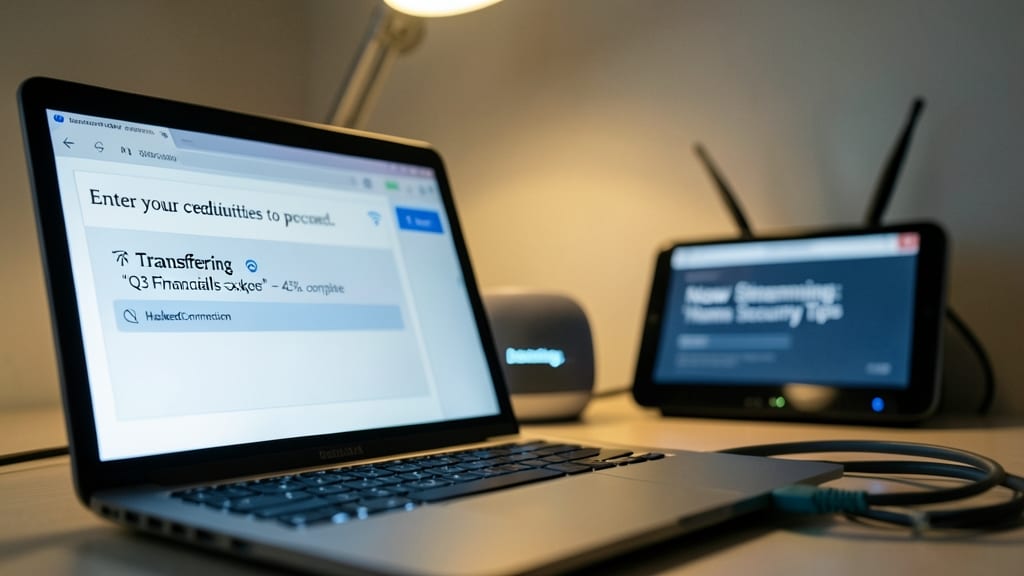
Your home Wi-Fi isn’t just for streaming—it’s the gateway to your work files, bank accounts, and personal data. Neighbors with weak passwords can hijack your connection, slowing speeds and exposing you to man-in-the-middle attacks that steal sensitive info during video calls or file transfers.
Start by renaming your SSID (network name) from the default manufacturer label to something unique—this alone thwarts casual snoopers. Then, upgrade to WPA3 encryption (not WPA2) in your router settings, as it resists brute-force attacks even if someone guesses your password. Finally, disable WPS (Wi-Fi Protected Setup), a feature hackers exploit to crack passwords in minutes. Most modern routers let you do this in under 5 minutes via the admin panel.
This setup is ideal for remote workers who rely on stable connections—especially those handling sensitive data. A secure network means fewer interruptions and peace of mind, knowing your traffic stays private. ⚡
Regularly Update All Software
Skipping updates might feel like a minor annoyance, but it’s the #1 way hackers gain access to your system. A single unpatched vulnerability—like the Log4j flaw—can turn your device into a backdoor for attackers within hours of disclosure.
Most modern operating systems (Windows, macOS, Linux) and apps now support automatic updates, but don’t rely solely on defaults. Enable critical security patches for browsers (Chrome, Firefox, Edge) and productivity tools (Slack, Zoom, Microsoft Office)—these often get exploited before general updates roll out. Pro tip: Use Windows Update’s "Pause updates" sparingly—even a 24-hour delay can leave you exposed.
This is non-negotiable for remote workers handling sensitive data. Set a calendar reminder to manually verify updates monthly, even if automation is enabled. ⚡
Create Strong, Unique Passwords
Tired of reusing passwords like "Password123"? A password manager like Bitwarden or 1Password generates and stores random, 20-character passwords for every account—automatically. This eliminates the #1 breach risk: password reuse, which hackers exploit to hijack multiple accounts with a single stolen credential.
Most tools sync across devices, offer biometric unlocks, and even audit your passwords for vulnerabilities. For example, Bitwarden is open-source and free, while 1Password adds family-sharing features. Both integrate with browsers to auto-fill logins securely, saving you time while boosting security.
Perfect for remote workers juggling work emails, banking apps, and shopping accounts—no more sticky notes or browser-saved passwords. 🌟
Lock Down Your Devices Physically
Your device’s security isn’t just digital—it’s physical too. A lost or stolen laptop with unencrypted data can expose company secrets or personal files in seconds, making hardware-level security just as critical as software protections.
Start by enabling full-disk encryption (BitLocker for Windows, FileVault for macOS, or LUKS for Linux) to scramble all data if your device falls into the wrong hands. Pair this with a biometric lock (fingerprint or Face ID) for instant, hands-free security—no more weak PINs or easily guessable passwords. For extra peace of mind, use a physical cable lock when working in cafes or airports, ensuring your device stays with you even if you step away for a moment.
This setup is perfect for freelancers, remote employees, or anyone handling sensitive data—whether it’s client files, financial records, or proprietary projects. A few simple steps turn your device into a fortress, not a target. 💪
Avoid Phishing Scams with Email Filtering
Most phishing attacks start with a single click—yet 90% of successful breaches begin with a compromised email. The good news? Your inbox already has built-in defenses you’re not using. Tools like Microsoft Defender for Office 365 automatically flag suspicious links with real-time warnings, while Gmail’s phishing protection scans attachments for malware before they reach your device.
Enable these features in seconds: In Office 365, navigate to Security & Compliance Center and toggle on Safe Links and Safe Attachments. In Gmail, go to Settings > Security and enable phishing and malware scanning. Both systems also learn from your behavior—reporting false positives trains the AI to get smarter over time.
This is your first line of defense against CEO fraud, fake invoices, and malware-laced files. Whether you’re a freelancer handling client payments or an employee processing HR documents, these tools act as a human-like gatekeeper—catching threats before they reach your screen. 💡
Use Endpoint Detection and Response
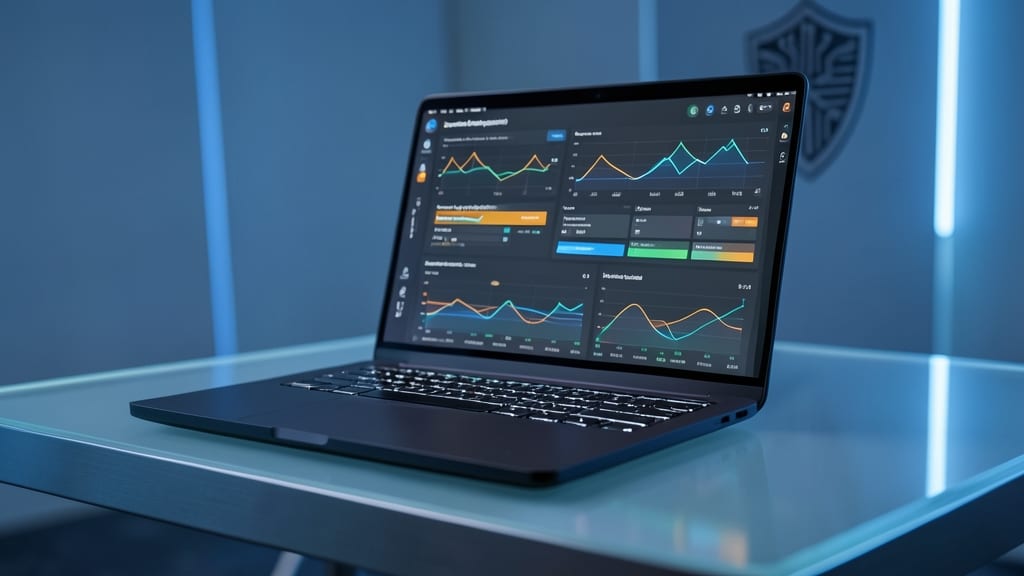
What if malware could be stopped before it even starts? Endpoint Detection and Response (EDR) tools like CrowdStrike and SentinelOne do exactly that—monitoring your device in real-time for suspicious behavior, from ransomware attacks to zero-day exploits, before they escalate into full-blown breaches.
These solutions go beyond traditional antivirus by analyzing behavioral patterns (not just file signatures) to detect threats like living-off-the-land attacks or encrypted malware. Features like automated threat containment and detailed forensic reports help IT teams isolate risks without manual intervention. Many even integrate with Microsoft Defender for Endpoint for seamless enterprise deployments.
Perfect for remote workers handling sensitive data—especially in finance, healthcare, or legal fields—EDR acts as your last line of defense when other security layers fail. 💪
Secure Your Cloud Storage Properly
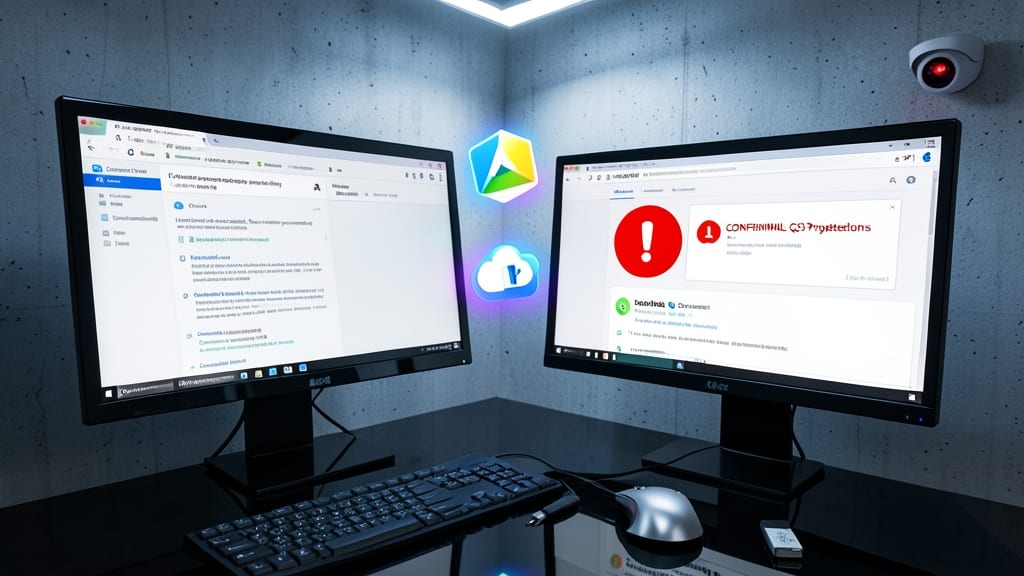
Accidental file leaks or unauthorized access to your cloud storage could expose sensitive work documents in seconds. Most people overlook the built-in security features in services like Dropbox, Google Drive, and OneDrive—yet these tools offer powerful safeguards to lock down your data without complexity.
Enable file versioning to recover lost or corrupted files instantly, turn on end-to-end encryption for files at rest and in transit, and set granular access controls (e.g., expiring links, two-factor authentication for sharing). Dropbox’s Admin Console even lets you enforce these rules company-wide, while Google Drive’s Vault provides eDiscovery tools for compliance. OneDrive’s Microsoft Purview adds advanced threat protection for ransomware.
This setup is ideal for freelancers, remote teams, or anyone handling client data—because even a single misconfigured share link can trigger a breach. 🌟
Monitor and Log Remote Access Sessions
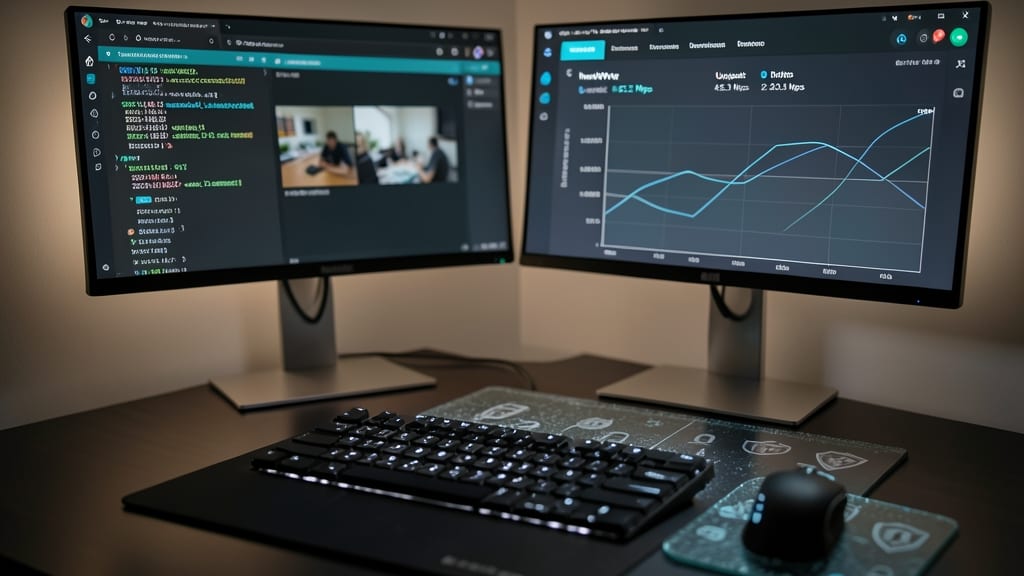
Ever wondered who’s actually accessing your work systems when you’re not looking? Remote access tools like TeamViewer and AnyDesk keep logs of every session—including timestamps, user IDs, and even screen activity—so you can spot unauthorized logins fast.
Most VPN providers (like NordVPN or ExpressVPN) also log connection details, letting you review who accessed your network and when. Tools like Splunk or SIEM systems take it further by correlating logs across devices to flag anomalies. This isn’t just for IT admins—freelancers and small teams can use free TeamViewer logs to verify if a client’s remote session went off-script.
If you frequently share access, this practice helps you audit permissions and catch breaches early. Perfect for remote managers, freelancers, or anyone who hands out remote access keys. 🌟