
Troubleshooting
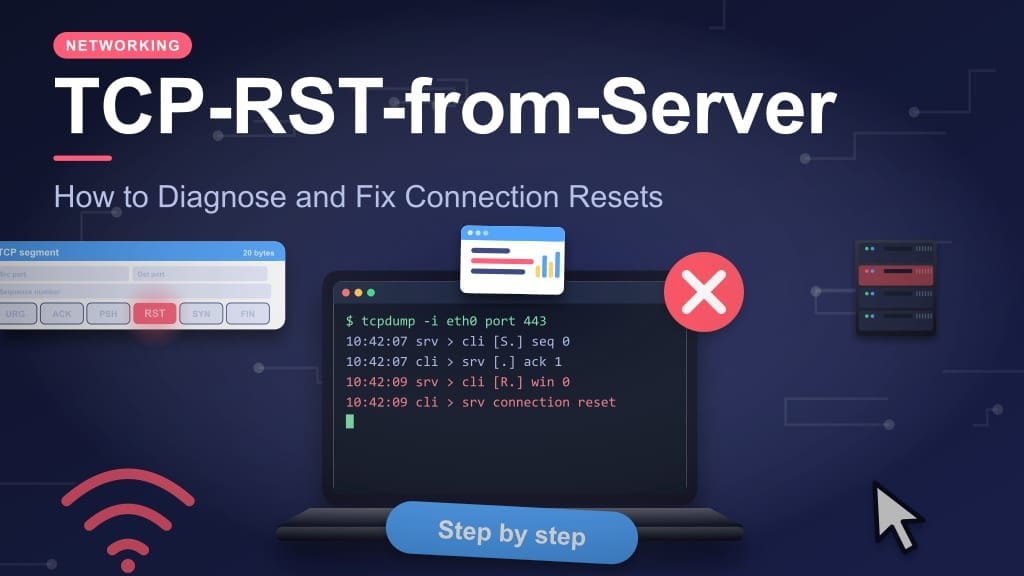
A TCP-RST-from-server is like a slammed door—your connection gets cut off abruptly, and there’s no explanation.
You’re mid-SSH session or browsing a site when suddenly, ‘Connection Reset’ appears. One minute, everything’s fine; the next, your app crashes or the terminal spits out a TCP-RST error. It’s frustrating, but the fix often lies in understanding why the server sent that reset packet in the first place.
Whether it’s a misconfigured firewall, a server-side crash, or a network device playing middleman, these resets don’t happen by accident. The good news? With the right tools—like tcpdump, Wireshark, or even a simple telnet test—you can pinpoint the exact cause and restore stability.
Below, I’ll walk you through how to diagnose the issue, decode the logs, and apply fixes that actually work—whether you’re dealing with Linux, Windows, or a cloud-hosted server.
What TCP-RST-from-server means and common causes
A TCP RST (Reset) packet is an abrupt termination signal sent by a server to immediately close a connection. Unlike normal FIN (Finish) packets, which gracefully shut down a connection, a RST packet forces an immediate disconnect without completing the TCP handshake.
This often happens when the server detects an error or security violation, such as an invalid request or misconfigured rule.
The TCP-RST-from-Server error typically appears in logs or error messages as "Connection reset by peer" or "Network error (10054)." This can disrupt services like SSH sessions, HTTP requests, or database connections, leaving users confused about the root cause.
Unlike a TCP FIN, which follows the standard four-way handshake, a RST is a unilateral action with no negotiation.
| Issue | Root Cause | Example Scenario |
|---|---|---|
| Firewall Blocking | Misconfigured iptables or Windows Firewall rules drop packets without warning. | A new security rule blocks all incoming port 22 traffic, causing SSH disconnections. |
| Server Crash | An application crash or kernel panic forces the server to send RST packets. | A memory leak in a Node.js app triggers a server restart, resetting all active connections. |
| Load Balancer Misconfig | A load balancer (e.g., Nginx, HAProxy) drops connections due to stale sessions or misrouted traffic. | A timeout setting of 5 seconds in HAProxy resets idle connections before clients complete requests. |
| Invalid Packet Handling | The server rejects malformed TCP SYN or HTTP headers, triggering an RST. | A broken client library sends an invalid HTTP/2 frame, causing the server to reset the connection. |
| Network Device Issues | A router or switch drops packets due to ACL rules or MTU mismatches. | A VPN gateway enforces strict IPsec policies, resetting unencrypted traffic. |
One of the most common causes is a misconfigured firewall. For example, if you recently updated your iptables rules on a Linux server to block suspicious traffic, it might accidentally drop legitimate connections.
A real-world case: a DDoS protection rule in Cloudflare triggered RST packets for high-frequency requests, breaking an API integration.
Server-side crashes also generate RST packets. If your web server (e.g., Apache or Nginx) encounters an unhandled exception, it may abruptly terminate connections. For instance, a segfault in a Python backend could reset all active WebSocket connections without logging the error.
Load balancers are another frequent culprit. If your HAProxy or AWS ALB has a timeout setting too aggressive for your application, it will reset idle connections. For example, a 5-second timeout might work for static files but fail for long-running GraphQL queries.
Network devices like routers or firewalls can also send RST packets if they detect anomalies. For instance, a Cisco ASA might reset traffic violating its access control lists (ACLs). Always check device logs for dropped packets or policy violations.
Finally, client-side issues can trigger RSTs. If a client sends an invalid TCP SYN or HTTP header, the server may respond with a reset. For example, a buggy mobile app sending malformed WebRTC packets could cause the server to drop the connection.
To diagnose, use tools like Wireshark or tcpdump to capture the RST packet. Look for flags like RST=1 in the packet header. This helps distinguish between a firewall drop (no RST) and a server-initiated reset.
Understanding these causes helps you narrow down whether the issue lies in network hardware, server software, or client applications. The next step is verifying logs and testing connectivity to isolate the problem.
Step-by-step troubleshooting guide for TCP-RST errors
When you encounter a TCP-RST-from-server error, the first step is to systematically verify each layer of your network stack. Start with server-side logs—check syslog, application logs, and firewall logs for RST events or connection drops.
On Linux, use journalctl -xe | grep -i reset to filter for RST-related entries. For Windows, inspect Event Viewer under Windows Logs > Security for blocked connections.
Next, validate your firewall rules. On Linux, run iptables -L -n -v or nft list ruleset to check for overly restrictive policies. For Windows, use netsh advfirewall show allprofiles to review active rules.
Look for rules that might block outbound or inbound traffic on critical ports like 22 (SSH) or 80/443 (HTTP/HTTPS). Misconfigured rules are a top cause of silent RSTs.
Inspect syslog, application logs, and firewall logs for RST events.
Validate Firewall Rules
Run iptables -L -n -v (Linux) or check Windows Firewall profiles.
Test Connectivity with telnet/nc
Manually test ports (e.g., telnet server 22) to simulate client requests.
Capture Packets with tcpdump/Wireshark
Filter for RST flags (e.g., tcpdump -i eth0 'tcp[tcpflags] & (tcp-rst) != 0').
Verify Load Balancer/Proxy Settings
Check timeouts (e.g., HAProxy’s timeout client) and session persistence rules.
Use manual testing tools like telnet or nc (netcat) to simulate client requests. For example, test SSH connectivity with telnet your-server 22. If the connection drops immediately, the issue is likely firewall-related or server-side.
For HTTP, use nc -zv your-server 80 to check if the port is reachable. If the test fails, the problem could be a load balancer or network device blocking traffic.
For deeper analysis, capture packets with tcpdump or Wireshark. On Linux, run sudo tcpdump -i eth0 'tcp[tcpflags] & (tcp-rst) != 0' to filter for RST packets. Look for patterns like repeated RSTs from the server or unexpected SYN packets.
In Wireshark, filter for tcp.rst == 1 to isolate reset events. This helps distinguish between firewall drops (no RST) and server-initiated resets.
If you’re using a load balancer (e.g., HAProxy, Nginx, or AWS ALB), review its configuration. Check timeout settings like timeout client or timeout server—aggressive values (e.g., 5 seconds) can reset idle connections.
For HAProxy, inspect logs with haproxy -f /etc/haproxy/haproxy.cfg -d to detect misrouted traffic or stale sessions.
Finally, validate application stability. If the RSTs occur during high traffic, your server might be overloaded. Use tools like htop (Linux) or Task Manager (Windows) to monitor CPU/memory usage.
For web apps, check for unhandled exceptions in logs (e.g., 500 errors in Nginx). If the issue persists, consider load testing with tools like Locust or JMeter to simulate traffic spikes.