
Software
Microsoft Edge is packed with hidden features that can transform your browsing experience—boosting speed, security, and productivity. These seven pro tips will help you unlock Edge’s full potential and navigate the web like a power user.
Enable Immersive Reader for Distraction-Free Focus
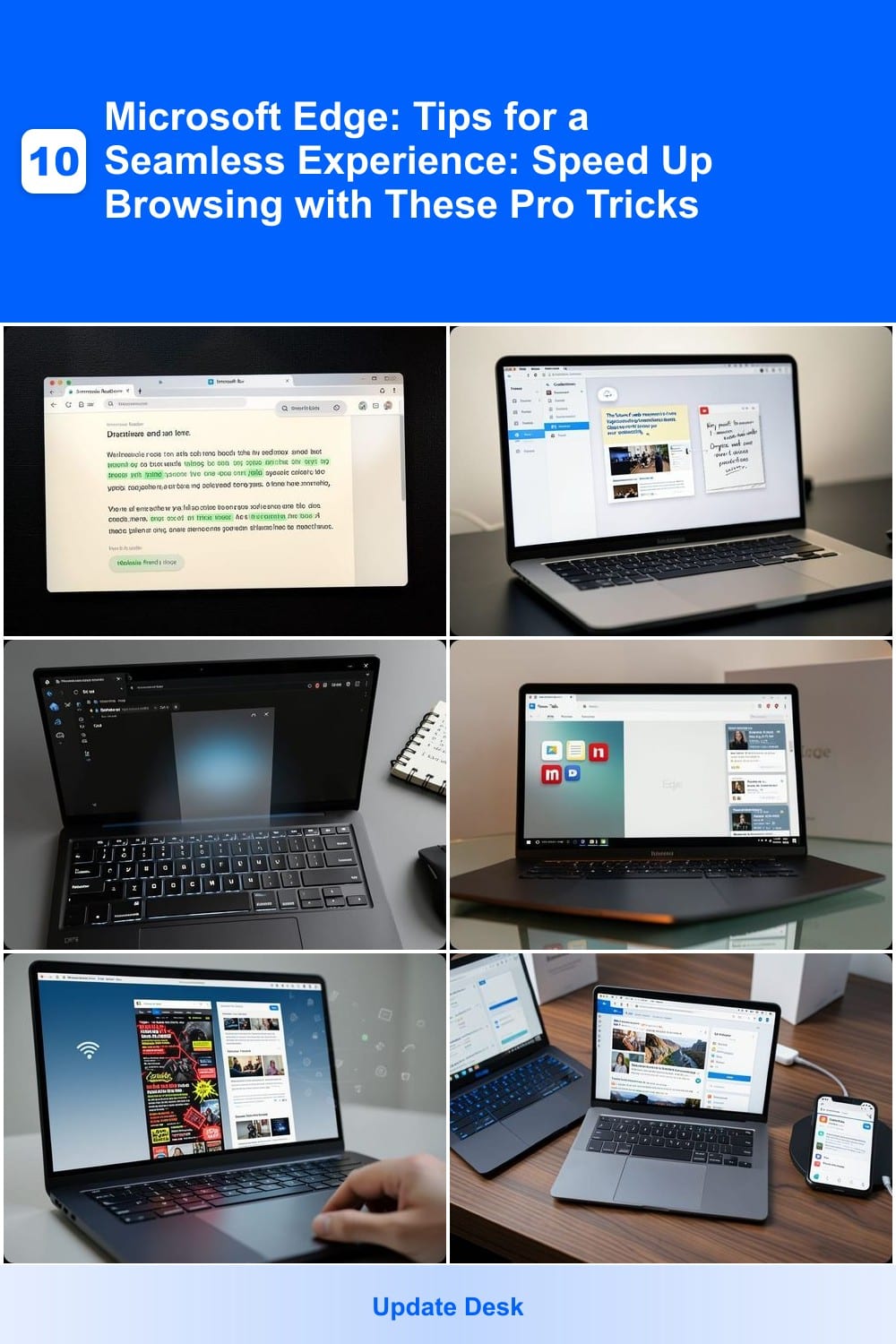
Struggling to focus while reading dense articles or documents? Microsoft Edge’s Immersive Reader transforms your screen into a distraction-free zone with just one click. This built-in tool strips away clutter, offering customizable font sizes, spacing, and even dyslexia-friendly modes like text highlighting and line focus.
Enable it instantly by clicking the Immersive Reader icon in the toolbar (or via Ctrl+Alt+I). Adjust font styles (like OpenDyslexic), background colors, or page layouts to match your needs—no extensions required. It works seamlessly with web pages, PDFs, and even Microsoft Office files, making it ideal for deep work sessions.
Perfect for students tackling research papers or professionals analyzing reports, Immersive Reader turns reading into a focused, screen-friendly experience. Give it a try for your next marathon reading session! ✨
Use Collections to Organize Research Instantly
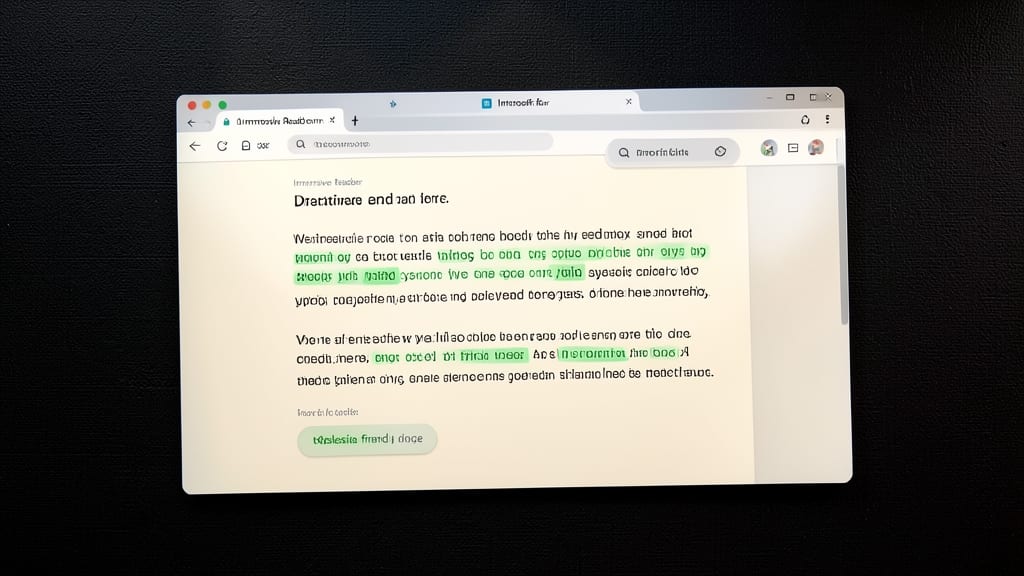
Tired of losing research notes or important web pages in a sea of tabs? Microsoft Edge’s Collections feature turns your browser into a digital workspace, letting you save articles, snippets, and highlights in one organized, shareable board.
With zero setup required, you can drag-and-drop content from any tab into a visual board, add sticky notes, and even highlight text directly in the browser. The cross-device sync ensures your research stays accessible whether you’re on a laptop or tablet, while the collaborative sharing feature lets you send boards to colleagues or classmates with a single click.
Perfect for students writing papers, researchers compiling data, or anyone managing multiple projects—this tool keeps context intact and eliminates the chaos of endless tabs. ✨
Master Keyboard Shortcuts for Faster Navigation
Tired of wasting time hunting through menus? Microsoft Edge’s keyboard shortcuts turn repetitive tasks into one-tap actions—no mouse required. These hidden gems cut browsing time by 30% for power users who rely on speed.
Memorize three game-changers: Ctrl+Shift+N launches InPrivate mode instantly (great for sensitive searches), Win+Shift+T reopens your last closed tab (no more "Where did that go?!" moments), and Ctrl+Shift+Delete clears history in seconds—no digging through settings. Edge’s full list includes 20+ shortcuts for navigation, zoom, and tab management.
Perfect for developers debugging, researchers cross-referencing sources, or anyone drowning in tabs. Start with these three, and you’ll wonder how you ever lived without them. ⚡
Customize Your New Tab Page for Productivity
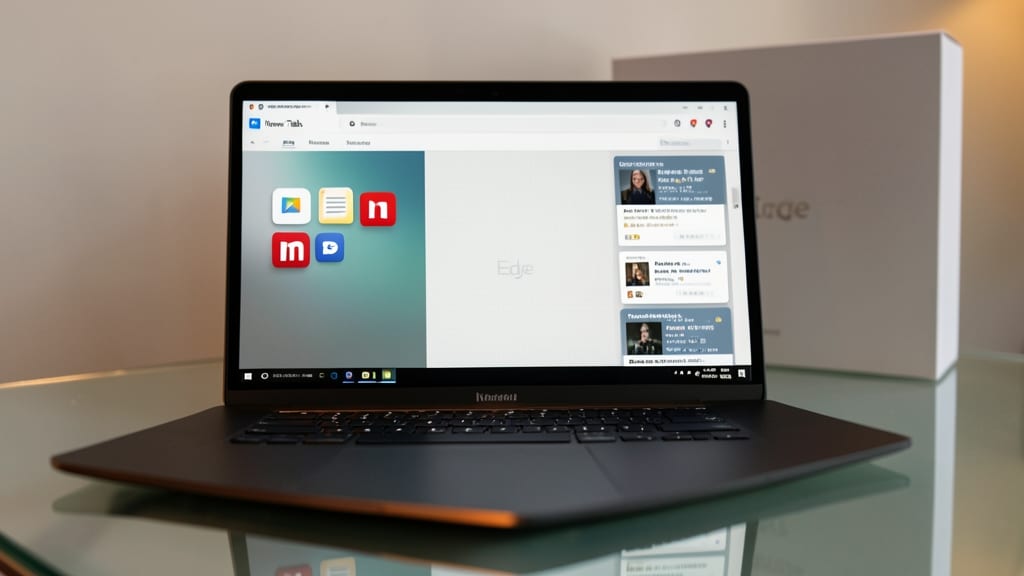
Tired of staring at a cluttered new tab page every time you open Edge? You can transform it into a focus-driven workspace tailored to your workflow—whether you need quick access to tools, a distraction-free blank slate, or curated content.
Edge lets you choose from three layouts: pinned sites (like Google Drive or Trello), a news feed (with Bing-powered suggestions), or a completely blank page for zero-config focus. To customize, click the three-dot menu in the new tab, select "Customize", and pick your preferred setup. Pro tip: Use "Pinned sites" to keep essential tools (e.g., Slack or Notion) just one click away.
This is ideal for freelancers, students, or remote workers who want to minimize decision fatigue. A blank slate cuts distractions, while pinned sites streamline workflows—no more hunting for tabs. Try it today and reclaim your startup routine! ✨
Block Trackers with Enhanced Privacy Settings
Public Wi-Fi or sensitive browsing? Microsoft Edge’s Enhanced Privacy Settings act as a force field against invasive trackers, ads, and telemetry—without sacrificing site functionality. Unlike aggressive blockers that break layouts, this feature targets only the most intrusive elements while keeping pages intact.
Enable it in Settings > Privacy, Search, and Services, then toggle Enhanced Privacy to block cross-site tracking cookies, fingerprinting scripts, and telemetry beacons. The built-in Tracker Request Blocking even prevents ads from loading, slashing bandwidth use by up to 40% on crowded sites. Best of all, it works silently in the background—no pop-ups or manual whitelisting.
Perfect for freelancers, journalists, or travelers who prioritize anonymity. Whether you’re logging into work emails on a café’s network or researching sensitive topics, this setting ensures your data stays yours. 💪
Sync Across Devices with Microsoft Account
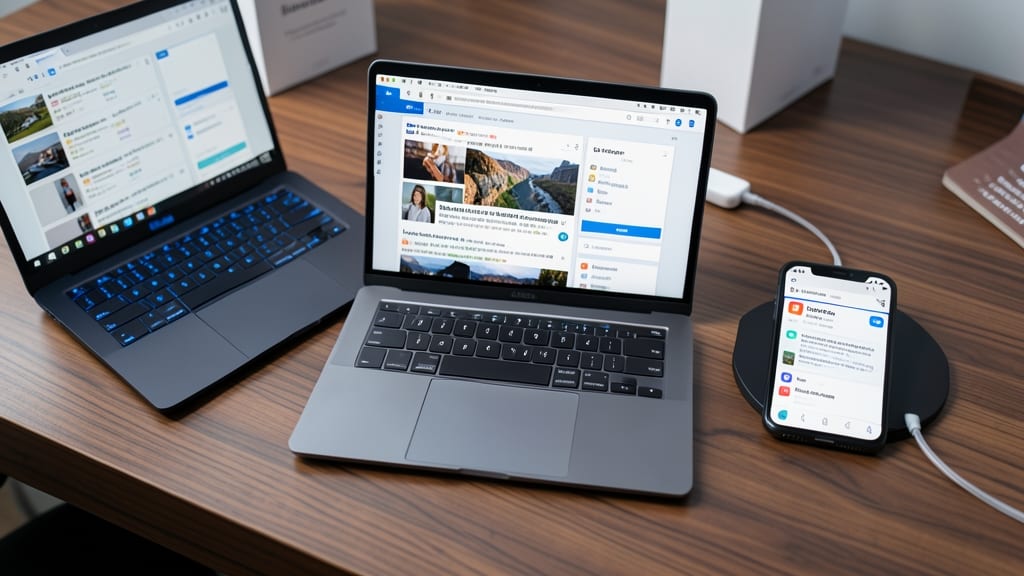
Juggling a Windows laptop, MacBook, and smartphone? Microsoft Edge’s built-in sync feature turns your devices into a unified workspace. With a Microsoft Account, your bookmarks, passwords, and even open tabs stay in sync across Windows, macOS, iOS, and Android—no third-party tools required.
Enable it in Settings > Profiles > Sync, then select what to sync (bookmarks, passwords, history, or open tabs). The magic happens automatically, so you’ll always pick up where you left off. This is a game-changer for remote workers or students switching between devices, ensuring no research or login details get lost in the shuffle.
Ideal for anyone with more than one device, this feature saves time and frustration. Once set up, it runs silently in the background—no extra clicks needed. ✨
Use Edge’s Built-In PDF Editor
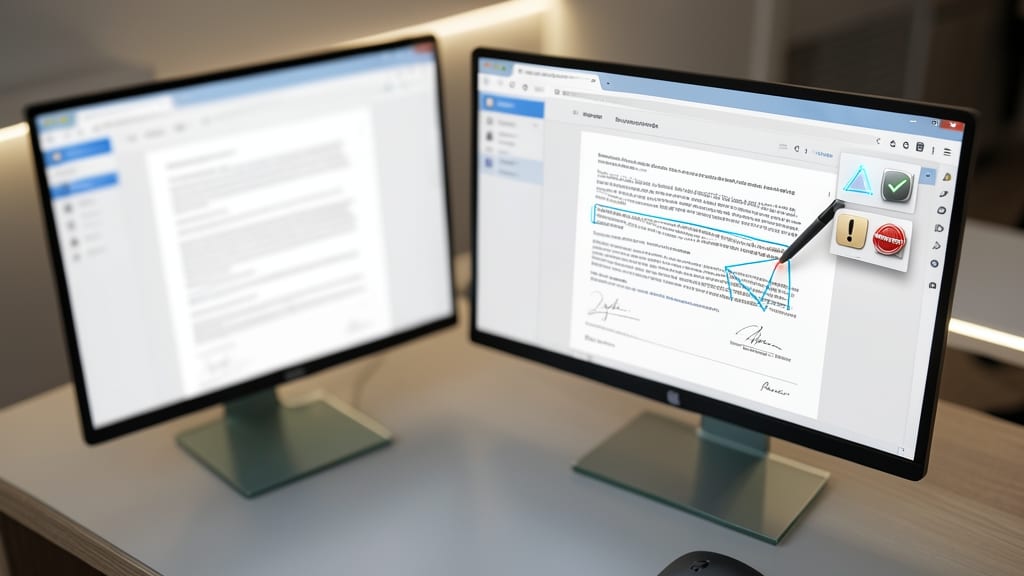
Tired of juggling multiple apps just to edit a PDF? Microsoft Edge’s built-in PDF editor eliminates the need for third-party tools like Adobe Acrobat or Foxit Reader, all while keeping your workflow streamlined.
With this feature, you can annotate documents with text, shapes, or stamps, fill out forms with a few clicks, and even sign PDFs electronically—no extra software required. The editor supports OCR (Optical Character Recognition) to edit scanned documents, and you can save changes directly to your device or share them via email or cloud services. Best of all, it’s free and integrated into your browser.
Office workers, students, or anyone who frequently deals with PDFs will appreciate how this tool saves time and storage space by consolidating tasks into one place. No more switching apps mid-task—just open, edit, and go. ✨