
PowerPoint
Want to elevate your PowerPoint presentations with professional transitions? These seven transition effects will help you create smooth, engaging slides that keep your audience focused and your message impactful—without looking amateurish.
Fade Slide Transition for Elegant Professionalism
When your presentation demands polished professionalism, the Fade Slide Transition is the quiet powerhouse that keeps the spotlight on your content. Unlike flashy animations, this transition smoothly dissolves one slide into the next, ensuring no distractions—just seamless flow. It’s the go-to for boardrooms, academic lectures, or any setting where subtlety reinforces credibility.
With zero motion or sound, the Fade Transition works across all PowerPoint versions (including 2016, 2019, and 365) and adapts to any design. Customize the speed to match your pacing, and pair it with a black or white fade for added sophistication. Microsoft’s built-in timing controls let you sync transitions with speaker notes for flawless delivery.
This is the default choice for executives, educators, and trainers who prioritize clarity over spectacle. Use it to transition between sections, emphasize key slides, or maintain a cohesive narrative—without ever breaking the flow. ✨
Slide Zoom Transition for Dynamic Impact
Need to make your audience lean in and feel the energy of your pitch? The Slide Zoom transition does exactly that by simulating a camera zooming into focus—perfect for keynotes, creative demos, or any presentation where you want to emphasize momentum and impact.
This transition starts with a blurred preview of the next slide, then smoothly zooms into sharp clarity, creating a cinematic effect that feels intentional and dynamic. Unlike static fades, it adds visual storytelling by guiding attention—ideal for product launches, artistic portfolios, or TED-style talks. You can even adjust the zoom speed (slow for emphasis, fast for urgency) and pair it with sound effects for extra flair.
Creative professionals, educators, and sales teams will love this for its ability to break monotony while keeping the audience engaged. Just avoid overusing it in data-heavy slides—save the drama for moments that matter! ✨
Push Transition for Modern Minimalism
When your presentation needs to feel clean, intentional, and visually sharp, the Push transition delivers a modern aesthetic that’s hard to beat. Unlike flashy zooms or dramatic fades, this effect uses smooth horizontal or vertical glides—think of one slide sliding out while the next slides in seamlessly, like a sleek UI animation.
Available in PowerPoint 2016 and later, this transition works best with minimalist layouts and high-contrast designs. You can adjust the direction (left/right/up/down) and speed to match your pacing, and it pairs perfectly with flat design elements or tech-focused visuals. For extra polish, combine it with a subtle sound effect (like a quiet "whoosh") to reinforce the motion.
Designers, developers, and product teams will love this for its professional yet contemporary vibe—ideal for product demos, app launches, or investor pitches where clarity and style matter equally. ✨
Morph Transition for Seamless Data Visualization
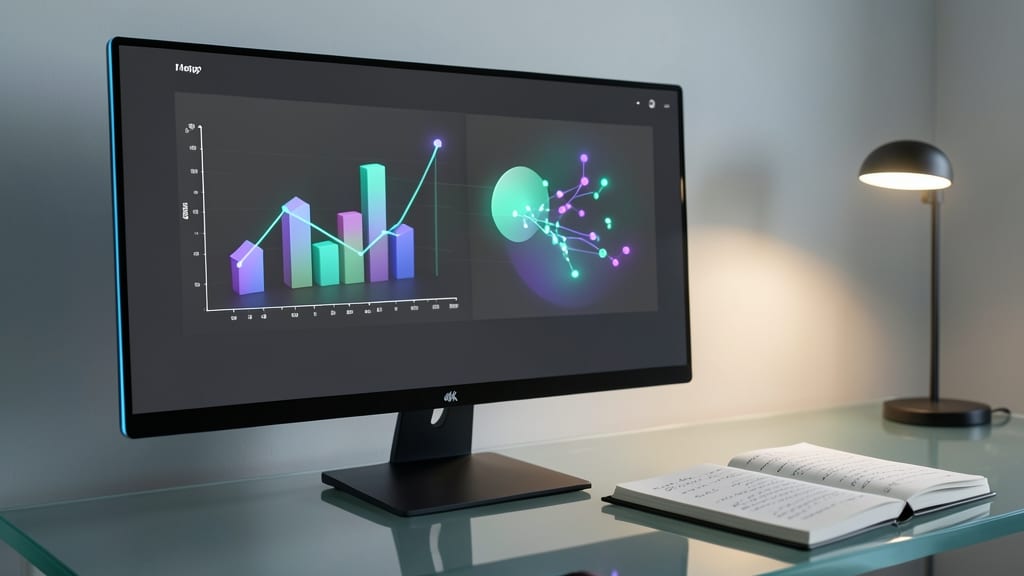
Struggling to keep your audience engaged when presenting complex data? The Morph transition in PowerPoint transforms one shape, chart, or graph into another—seamlessly. It’s the secret weapon for financial analysts, marketers, and data scientists who need to show trends without confusing visual breaks.
This transition lets you morph bar charts into line graphs, resize pie slices dynamically, or even tweak shapes while maintaining visual continuity. The effect is smooth and professional, with adjustable timing to match your pacing. Unlike other transitions, Morph preserves the data’s integrity, ensuring your audience stays focused on the insights—not the animation.
Perfect for quarterly reports, investor decks, or training modules where clarity matters. Use it to highlight comparisons or progress over time without disrupting flow. ✨
Wipe Transition for Creative Storytelling
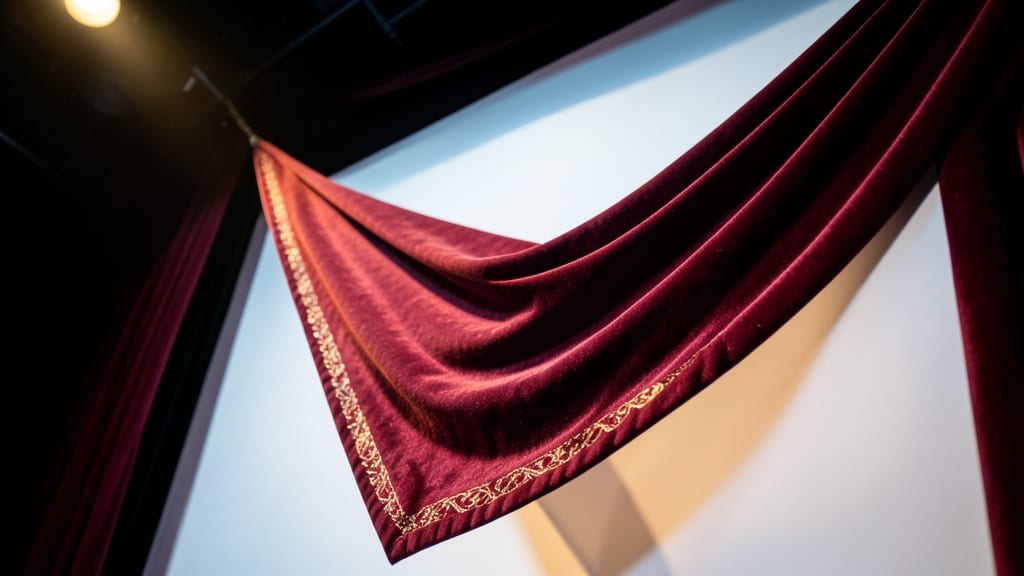
Want to transport your audience into a story? The Wipe Transition mimics a theater curtain sweeping aside—perfect for presentations that need narrative flair, like training modules or keynote speeches where pacing matters.
Choose from vertical, horizontal, or diagonal wipes to control the reveal direction, and adjust the speed to match your storytelling rhythm. Works seamlessly in PowerPoint 2016/2019/365, and pairs well with sound effects for extra cinematic impact.
Trainers, educators, and marketers will love this for its ability to signal transitions between topics without distracting from content. It’s the go-to for presentations where you want to feel like you’re guiding the audience through a journey. ✨
Fade Through Black for Dramatic Pacing
Need to make your audience lean in when the moment matters? The Fade Through Black transition adds intentional pause—letting key points land before the next slide reveals itself. Unlike other transitions that blur or slide, this one creates a dramatic black screen between slides, giving you control over timing and emphasis.
You can adjust the duration of the black screen (from 0.5 to 5 seconds) to match your pacing needs, and it works seamlessly across PowerPoint 2016, 2019, 365, and Online. The stark contrast also makes it ideal for highlighting transitions between sections or building suspense before a big reveal.
Perfect for keynote speeches, product launches, or training sessions where you want to control the rhythm. Use it to signal a shift in topic or give your audience time to absorb critical information. ✨
3D Slide Transition for Interactive Engagement
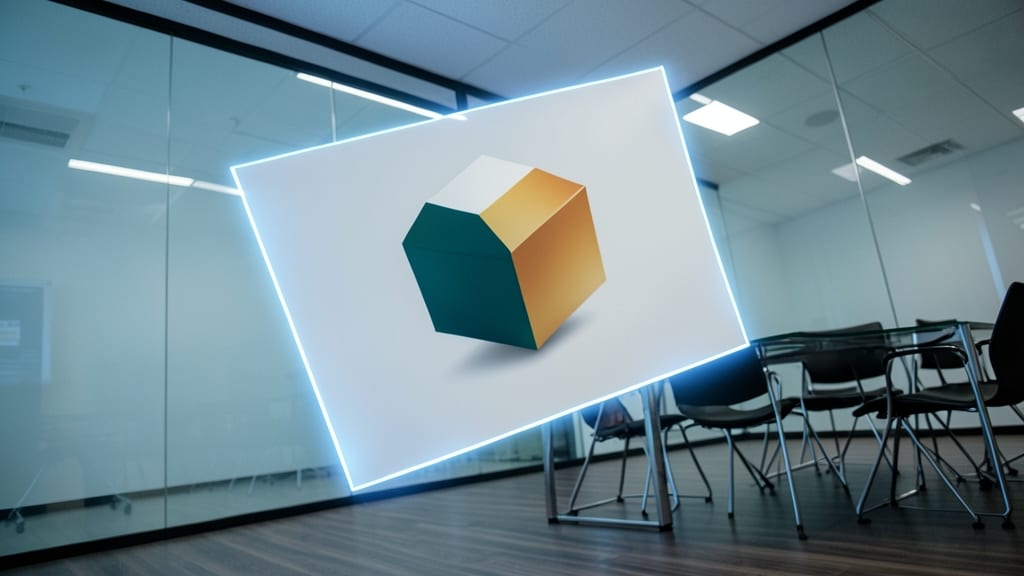
Turn your presentation into an interactive experience with the 3D Slide Transition, where slides appear to rotate, flip, or orbit in space. This isn’t just a visual effect—it’s a way to make your audience lean in, ask questions, and stay engaged during team-building exercises or educational content.
PowerPoint’s 3D transitions (like Cube, Pyramid, or Roll) add depth by simulating perspective, making flat slides feel dynamic. You can adjust the rotation axis and speed to control how dramatic the effect is—ideal for highlighting key moments in a gamified workshop or breaking up monotony in training sessions. Just ensure your content remains readable during the transition!
Perfect for trainers, educators, or anyone hosting participatory sessions, this transition works best when paired with interactive elements like polls or live demos. Just don’t overdo it—use it strategically to keep energy high without distracting from your message. ✨