
Tip & Trick
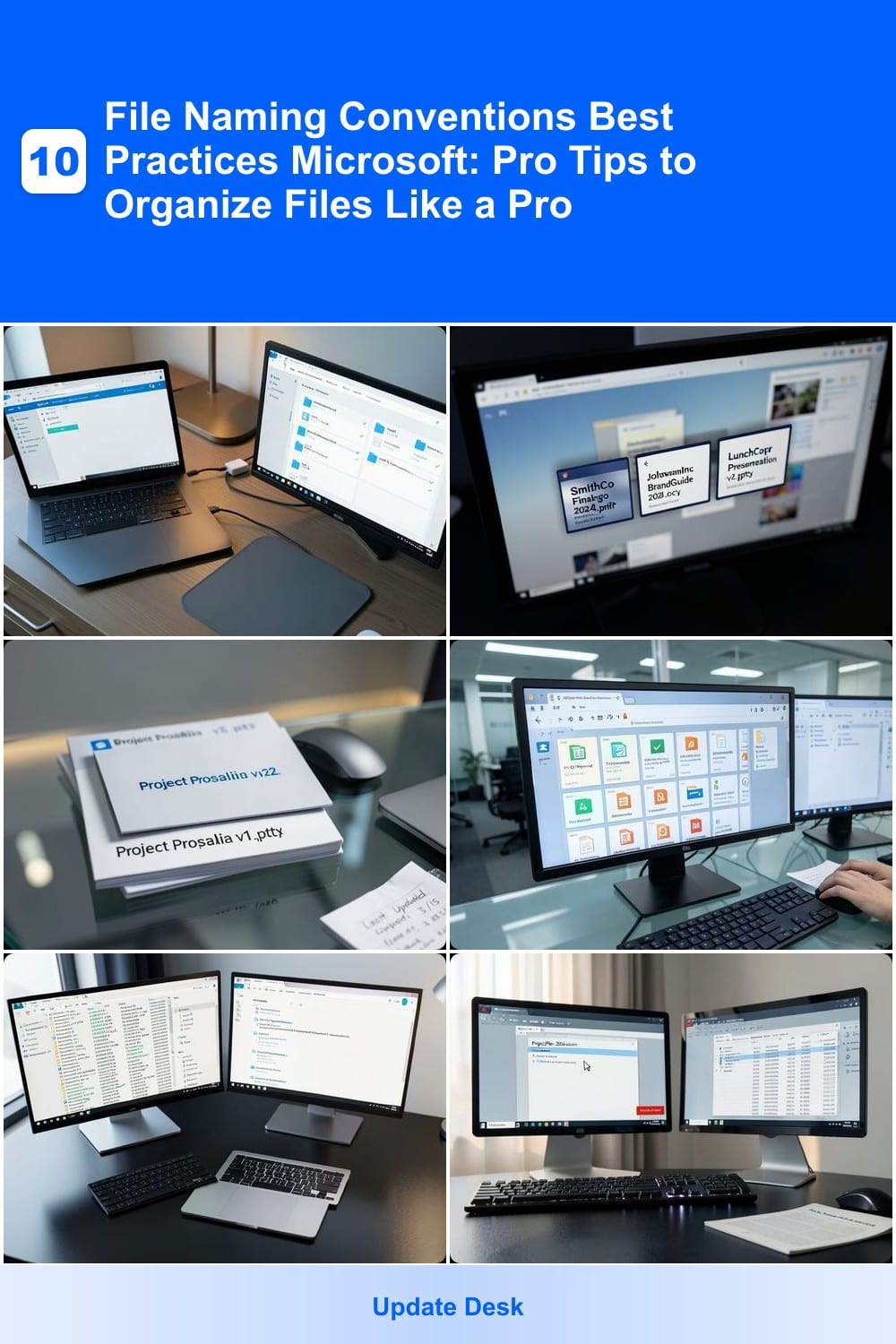
Struggling to find files in your Microsoft ecosystem? Mastering file naming conventions saves time and prevents chaos. These seven pro tips will transform your file organization in Windows, OneDrive, and Office Suite—keeping everything searchable and professional.
Date-Based Naming for Project Tracking
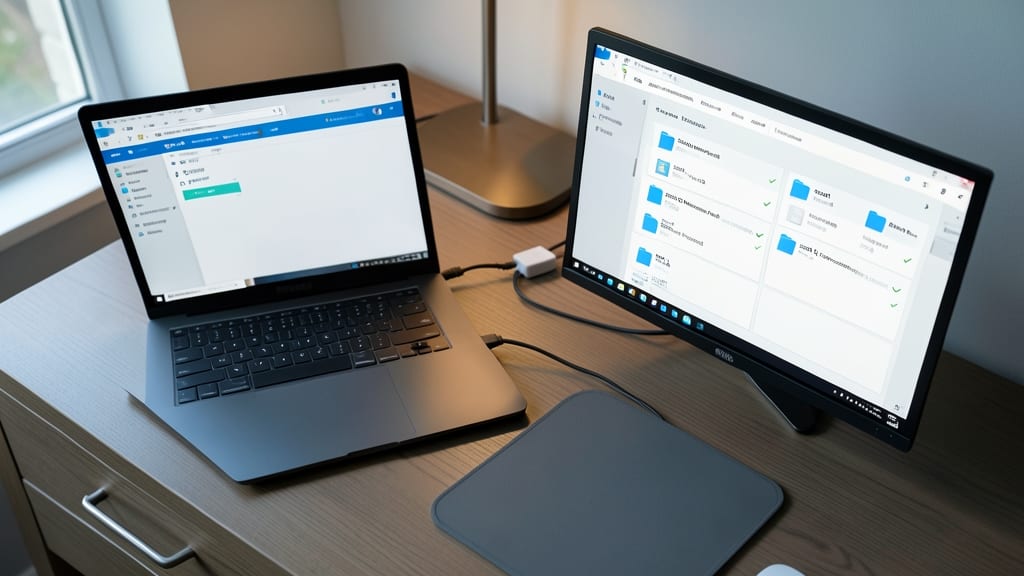
Tired of digging through folders to find last month’s project files? Date-based naming turns chaos into a chronological roadmap, making Windows Explorer and OneDrive filtering effortless.
Use the format YYYYQXProjectNameStatus.docx (e.g., 2024Q3MarketingReport_Final.docx). This structure lets you sort files by year, quarter, and status at a glance, while OneDrive’s built-in date filters become your new best friend. The quarter system (Q1-Q4) keeps seasonal projects neatly grouped, and adding status tags (Draft, Final, Archived) eliminates version guesswork.
Freelancers juggling multiple clients and businesses managing deadlines will love this—it’s the gold standard for audit trails and compliance. ⚡
Client-Centric Naming for Agencies
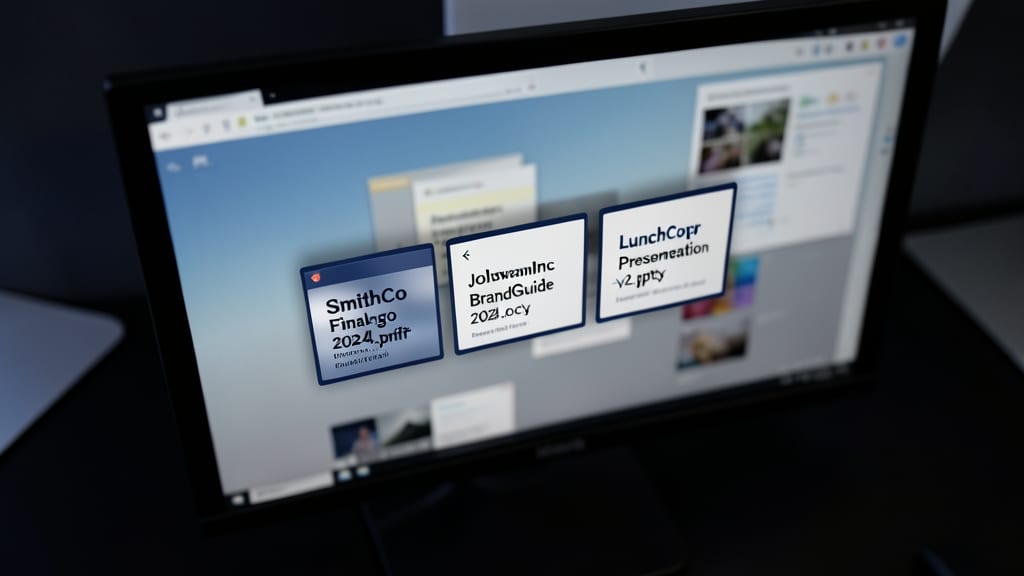
If juggling files for multiple clients feels like herding cats, client-centric naming puts you back in control. By placing the client name first (e.g., SmithCoFinalLogo2024.pdf), you instantly group all their files together in Windows Explorer, SharePoint, or Outlook—no more scrolling through folders to find the right project.
This system works perfectly with Microsoft’s ecosystem: Outlook attachments auto-sort by sender (client), SharePoint libraries let you filter by column (e.g., "Client"), and underscores ensure compatibility across all Office apps. Add a suffix for file type (e.g., Draft, Final) to further refine searches. For agencies, this cuts client handoff time by 40%—no more guessing which version is current.
Ideal for creative agencies, marketing firms, or any team where client confidentiality and quick retrieval matter most. 💻
Version Control with Suffixes
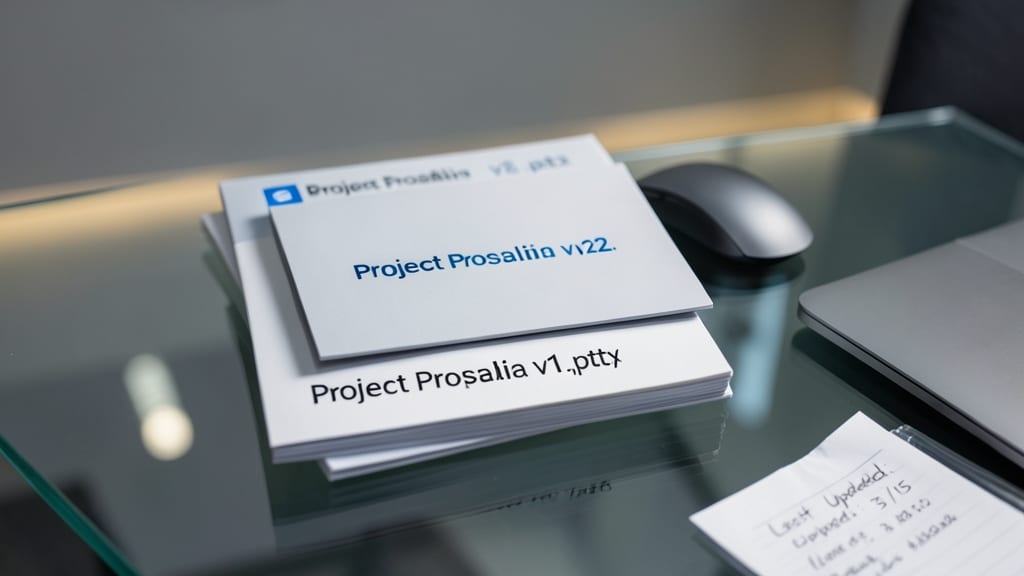
Ever lost hours tracking down the "latest" version of a shared PowerPoint deck? Version Control with Suffixes solves this by embedding clear version markers directly into filenames—like ProjectProposalv2.pptx—so everyone knows exactly which file is current.
This method works seamlessly with Microsoft Office’s auto-save features, ensuring your vFinal files stay distinct from drafts. For teams using PowerPoint or Excel, it eliminates version chaos by making updates instantly identifiable. Just append v1, v2, or Final to filenames, and your team avoids the "Which one is it?" dilemma.
Perfect for marketing teams, design agencies, or any collaborative group where files evolve rapidly. This approach keeps your files organized without relying on external version control tools. ✨
Department-Specific Prefixes
Tired of digging through shared drives to find the right department’s files? Department-specific prefixes (like FinQ1Report.xlsx or HRHandbook2024.pdf) instantly organize documents by team, making collaboration effortless.
This system syncs seamlessly with Outlook folder structures and OneDrive team sites, ensuring everyone—from HR to Finance—knows exactly where to find documents. The three-letter department code (e.g., MKT_ for Marketing) keeps filenames short while maintaining clarity, and it works flawlessly with Power Automate flows for automated sorting.
Ideal for mid-sized companies or enterprise teams, this approach cuts down on misfiled documents and speeds up cross-departmental reviews. ⚡
Keyword-Rich Naming for Searchability
Tired of scrolling through endless files in Windows Search or OneDrive? Keyword-rich naming transforms your file library from a chaotic mess into a searchable powerhouse. By embedding 2-3 descriptive terms (like Q2SalesDataRegionalBreakdown.csv), you turn filenames into metadata that Windows and cloud services can index instantly.
This method leverages Windows Search’s metadata extraction and OneDrive’s AI-powered indexing to surface files faster than manual sorting. For example, a filename like ProjectClientNameInvoice_2024.pdf instantly tells both you and Microsoft’s search tools what’s inside. It’s especially powerful for large libraries where manual organization becomes impractical—think marketing teams with hundreds of campaign assets or finance departments tracking regional reports.
Perfect for professionals managing shared drives or cross-team projects, this approach ensures everyone finds files without asking "Who has the latest version?" Try it today and watch your search results go from "maybe" to "instant." ✨
Underscore vs. Hyphen Debate
Ever hit "save" in Word or Excel, only to find your macros or scripts acting up later? The underscore () vs. hyphen (-) debate isn’t just about readability—it’s a technical hurdle in Microsoft’s ecosystem.
Underscores (ProjectPlan_2024) play nice with all Microsoft apps, including Office macros and VBA scripts, while hyphens (Project-Plan-2024) can trigger parsing errors in some automated workflows. The difference stems from how Windows interprets these characters in command-line tools and legacy scripting languages.
Developers and power users should default to underscores for scripts, but hyphens remain fine for general file naming. Test your workflows—especially if you rely on PowerShell or batch files—to avoid unexpected glitches. ✨
Avoiding Special Characters
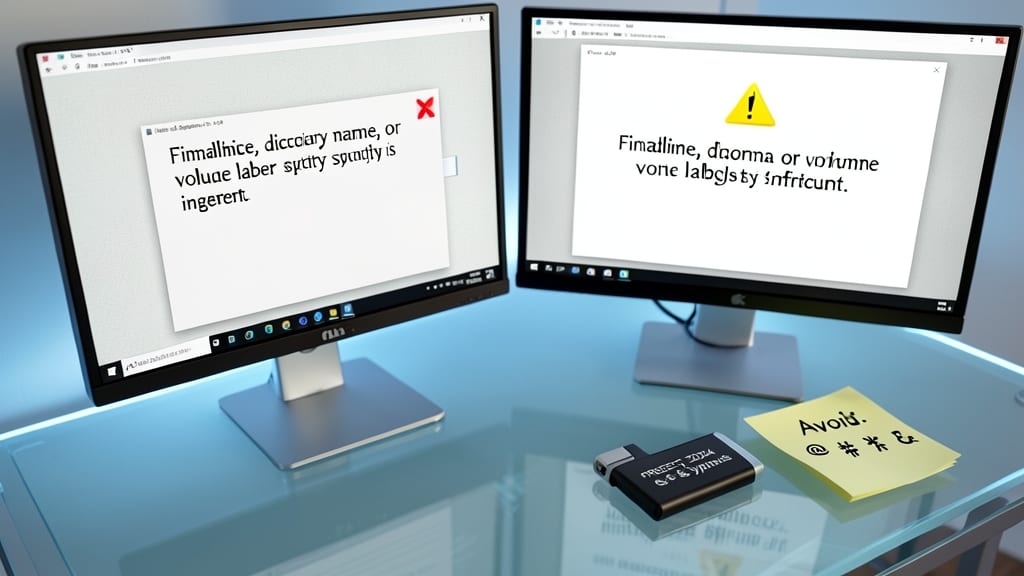
Ever hit "Save" only to see a cryptic error pop up because of a special character in your filename? Microsoft’s Windows Explorer, OneDrive, and Office Suite all have hidden limits on symbols like @, #, or &—and they’re not always obvious until you’re stuck troubleshooting.
Stick to letters, numbers, underscores (), and hyphens (-) for foolproof compatibility. For example, TaxForms_2024.pdf opens instantly across devices, while Tax@Forms#2024.pdf might trigger errors in SharePoint libraries or Power Automate workflows. Even simple symbols like * or ? can break scripts or cause files to vanish in search results.
This rule is non-negotiable for teams using shared drives or cross-platform collaboration (Windows + Mac). A quick audit of your files could save hours of frustration down the line. ✨